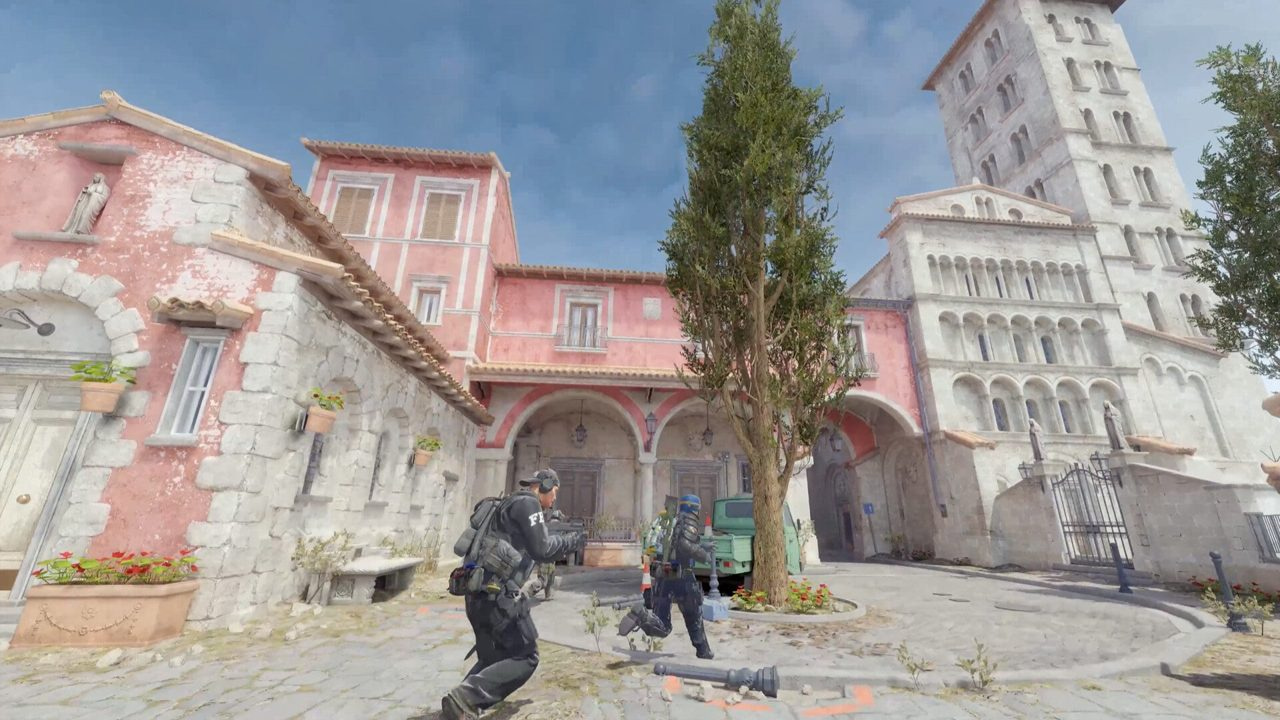
300 FPS that stutters on smokes feels worse than a locked 240 with clean frame times. Competitive settings are not about copying a pro config from Twitter — they are about visibility, input latency, and consistency on *your* hardware.
This guide gives you a Source 2 baseline for Counter-Strike 2 ranked play: what to set, why it matters, and how to test changes without resetting muscle memory every week. Pair it with our beginner's guide if you are still learning mechanics; dive into FPS optimization if you are already GPU-bound.
Quick answer: competitive baseline
- Display mode: Fullscreen at your monitor's native refresh rate. Disable V-Sync.
- Enable Boost Player Contrast. Set Global Shadow Quality to Medium (High if your GPU keeps 1% lows above refresh).
- Shader, Particle, and Ambient Occlusion: Low or Disabled. Model/Texture: Low–Medium.
- NVIDIA Reflex Low Latency: Enabled (Boost if latency-first). AMD: enable Anti-Lag 2 when available.
- Lock mouse sens, disable Windows pointer precision, keep raw input on.
- Launch options: short list only — e.g. `+fps_max 0 +exec autoexec.cfg`. Drop `-high` if you stutter.
Key takeaways
- 1% low FPS on your main maps matters more than the number in the corner.
- Medium shadows often beat Low — enemy shadow info wins rounds before peeks.
- Fullscreen + Reflex/Anti-Lag beats borderless for input path consistency.
- Change one variable per session; test on Mirage or your main map, not empty servers only.
- If tweaks stop helping, the bottleneck is hardware or background apps — not another launch flag.
Table of contents
- Key takeaways
- What competitive settings actually optimize
- Video settings — competitive baseline
- Resolution: native 16:9 vs 4:3 stretched
- Shadow quality — the tradeoff most guides skip
- Input latency: Reflex, fullscreen, and frame caps
- Mouse and Windows input
- Audio settings for footstep and utility clarity
- Launch options that still matter in Source 2
- How to test changes without ruining muscle memory
- When settings are not the problem
- Common competitive settings mistakes
- Frequently asked questions
- Conclusion
What competitive settings actually optimize
Ranked CS2 rewards three local variables you control: how early you see enemies, how fast clicks register, and whether frame times stay stable when smokes bloom. Everything else — skin detail, ambient effects, cinematic post-processing — trades frames for information you do not need.
There is no universal "best config." Pros disagree on resolution and sensitivity because those are feel decisions. Video, audio, and latency settings follow clearer rules. Start from the baseline below, then branch using the decision tables — not a 40-line launch string from a 2019 CS:GO forum.
Video settings — competitive baseline
Set these in-game under Settings → Video. Adjust one row at a time if you are diagnosing FPS issues.
| Setting | Recommended | Why |
|---|---|---|
| Display mode | Fullscreen | Lowest compositor overhead vs borderless windowed |
| Refresh rate | Monitor maximum | Match in-game to panel Hz — see monitor guide |
| Resolution | Native 16:9 or 4:3 stretched | Personal feel — decision table below |
| V-Sync | Disabled | Adds input latency; use in-engine cap if needed |
| NVIDIA Reflex / AMD Anti-Lag 2 | Enabled | Cuts render queue latency on supported GPUs |
| Boost Player Contrast | Enabled | Makes enemy models readable on busy backgrounds |
| Multisampling AA | 2x MSAA or 4x MSAA | 2x on mid GPUs; 4x if 1% lows stay above refresh |
| Global Shadow Quality | Medium (High if stable FPS) | Enemy shadows before peeks — do not blindly set Low |
| Dynamic Shadows | All | Moving player shadows at range |
| Model / Texture Detail | Low–Medium | Minimal tactical info; saves VRAM and frames |
| Shader Detail | Low | Less visual noise in firefights |
| Particle Detail | Low | Smokes and molotovs are lighter on the GPU |
| Ambient Occlusion | Disabled | Cosmetic; costs frames with little competitive gain |
| FidelityFX Super Resolution | Disabled (Highest Quality only if required) | Use only when GPU-bound on low-end hardware |
Resolution: native 16:9 vs 4:3 stretched
This is the one setting worth A/B testing for a full week each. Native 1920×1080 gives wider field of view. 1280×960 (4:3) stretched makes player models wider on screen and can boost FPS on weaker GPUs.
| Choice | Try it if... | Tradeoff |
|---|---|---|
| Native 16:9 | You want max FOV and clarity on a strong GPU | Targets feel smaller at distance |
| 4:3 stretched (1280×960) | You prefer wider targets or need FPS headroom | Less horizontal vision; some UI clipping |
| 4:3 black bars | You want 4:3 FOV without stretch distortion | Smaller effective image; rare in ranked |
Shadow quality — the tradeoff most guides skip
Lowering Global Shadow Quality saves FPS — but Medium or High can show an enemy's shadow before they wide-swing cat or door. That is free information in ranked.
Practical rule: set Medium. If your 1% lows on Mirage and Inferno stay above your monitor refresh, try High for one week. If FPS dips below refresh during smokes, drop to Medium before touching shader or particle settings.
Input latency: Reflex, fullscreen, and frame caps
Enable NVIDIA Reflex Low Latency in the Video menu on supported GeForce cards. Use "Enabled + Boost" only if you prioritize latency over a few FPS and your GPU has headroom. On AMD, enable Radeon Anti-Lag 2 when CS2 exposes it — do not stack multiple latency tools without testing.
Cap FPS with `+fps_max [refresh + 20]` if uncapped FPS makes your GPU run at 99% and frametimes spike. Uncapped (`+fps_max 0`) is fine when frame times stay flat. Fullscreen mode keeps the input path consistent; switch away from borderless if you feel micro-delay on flicks.
Mouse and Windows input
Disable "Enhance pointer precision" in Windows mouse settings — it is acceleration, and acceleration ruins spray control. Keep CS2 raw input enabled. Match eDPI to your aim routine (DPI × in-game sens); most ranked players sit between roughly 800–1600 eDPI at 800 DPI.
- Pick one sens, keep it 30 days minimum — pair with recoil control guide.
- Polling rate 1000 Hz on modern mice; higher only if your CPU is not struggling.
- Disable Xbox Game Bar capture overlay if you are not using it — reduces background hooks.
- Store binds in autoexec — config and binds guide.
Audio settings for footstep and utility clarity
Hearing beats seeing on Mirage apps and Inferno banana. Set master volume high enough that footsteps are clear without clipping — then lower music and VO volume to zero in competitive.
Enable HRTF if available. EQ profile "Crisp" or flat works for many players; heavy bass masks step frequencies. Full breakdown in our audio settings guide.
- Use stereo headphones — virtual 7.1 often smears direction.
- Push-to-talk reduces ambient noise for you and teammates.
- If steps sound flat after a Windows update, re-check default playback device.
Launch options that still matter in Source 2
Steam → Counter-Strike 2 → Properties → Launch Options. Source 2 ignores most CS:GO-era flags. Short lists win.
| Option | Status | Notes |
|---|---|---|
| +fps_max 0 | Works | Uncap FPS — or set +fps_max 360 for steadier pacing |
| +exec autoexec.cfg | Works | Loads binds and settings on startup |
| -nojoy | Works | Optional; drops joystick API |
| -allow_third_party_software | Works | Only if OBS or capture tools require it |
| -high | Test individually | Can help or cause stutter — remove if frametimes worsen |
| -novid | Harmless | No intro in CS2; safe to leave or remove |
| -tickrate 128 | Dead | Sub-tick replaced tickrate |
| -d3d9ex / -limitvsconst | Dead | CS:GO DirectX 9 flags — ignore |
How to test changes without ruining muscle memory
- Baseline: note average FPS and 1% lows on your main map (use net_graph or Steam FPS counter).
- Change one setting or one launch flag per session.
- Play at least one full Competitive match — not just aim map — before deciding.
- Revert if 1% lows drop below refresh or input feels sluggish.
- Lock the final config 30 days before copying anyone else's pro settings.
When settings are not the problem
If FPS is fine but you micro-freeze on smokes, read the stuttering fix guide. If you are GPU-bound on a budget PC, start low-end optimization. For overlay or tool setup alongside CS2, check system requirements and initial setup documentation.
Common competitive settings mistakes
| Mistake | What happens | Fix |
|---|---|---|
| Borderless + V-Sync "just for streaming" | Added latency on every duel | Fullscreen for ranked; stream on capture card or tested OBS setup |
| Global Shadow Quality on Low always | Miss shadow info before peeks | Try Medium; validate FPS on main maps |
| New sens + new resolution same day | Zero transferable muscle memory | One change per week |
| Copying pro config verbatim | Wrong FOV/DPI for your desk and posture | Steal principles, not numbers |
| 15 launch options from 2018 | Stutter, crashes, or no effect | Keep 2–4 flags maximum |
| Ignoring audio while tuning video | Late rotates from missed steps | Set audio once, then leave it |
Frequently asked questions
Should I use 4:3 stretched in CS2?
If wider targets help your aim and you accept narrower FOV, yes — many pros still use 1280×960 stretched. If you prefer clarity and peripheral vision, native 16:9 is fine. Test each for a week; neither is objectively superior.
What FPS should I target?
Stay at or above your monitor refresh rate on average, with 1% lows above refresh on Mirage/Inferno smokes. More FPS helps only while frame times stay stable.
Does NVIDIA Reflex help in CS2?
Yes on supported NVIDIA GPUs. Enable Reflex Low Latency in Video settings. Use Boost if you want lowest latency and your GPU is not pegged at 100% constantly.
Should Global Shadow Quality be Low or High?
Not always Low. Medium is the balanced default — enemy shadows remain useful. High if FPS headroom exists; Low only if you are GPU-bound and have tested Medium first.
Is -high safe in launch options?
It works but is not universal. Some PCs gain smoother pacing; others stutter because Windows starves background tasks. Test one session; remove it if frametimes worsen.
Fullscreen or borderless for ranked?
Fullscreen for lowest latency. Borderless is convenient for alt-tab but adds compositor overhead — avoid it if flicks feel delayed.
Should I copy a pro's settings file?
Copy the structure (contrast on, V-Sync off, Reflex on), not the exact numbers. Pros tune for their GPU, monitor, and sensitivity — your hardware and desk space differ.
Do high graphics settings give an advantage?
Rarely. Boost Player Contrast and readable shadows help information; ultra textures do not. Competitive advantage comes from stable FPS and clear audio, not maxed graphics.
Conclusion
Lock a baseline: Fullscreen, Boost Player Contrast on, Reflex or Anti-Lag enabled, Medium shadows, Low shaders/particles, sensible FPS cap. Test resolution and shadow quality against your actual 1% lows — not an empty map.
Next: crosshair settings and audio settings locked for 30 days, then recoil control. If FPS still dips, FPS optimization and stuttering fixes cover hardware-level tuning.