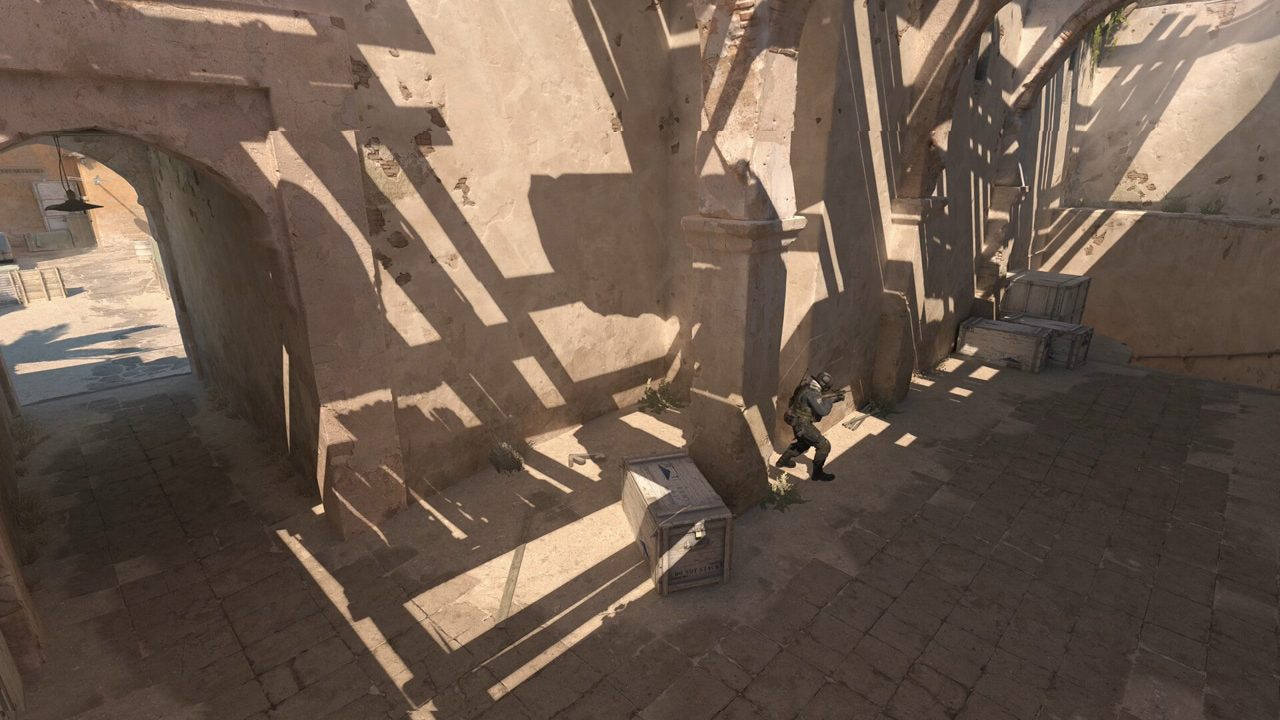
Your monitor is the last link in the latency chain. A 240 Hz panel running at 60 Hz in Windows, or HDR tone-mapping that crushes shadow detail on Inferno, wastes the frame rate you tuned in FPS optimization.
This guide covers refresh rate, resolution, gamma, and HDR decisions for competitive Counter-Strike 2 — plus the panel and driver settings that keep motion clear without adding input lag.
Apply competitive settings after display calibration. Crosshair color and enemy visibility depend on how your panel renders contrast — not just in-game sliders.
Quick answer: CS2 monitor baseline
- Set highest refresh rate in Windows Advanced Display — verify Hz matches panel spec.
- Match in-game refresh rate to Windows; cap FPS slightly above Hz if using G-Sync/FreeSync.
- Native resolution unless stretched aspect is a deliberate muscle-memory choice.
- Calibrate gamma in monitor OSD — target visible shadow detail without gray washout.
- Disable HDR for ranked CS2 on most gaming monitors — SDR consistency wins.
- Overdrive on medium; test Ultra/low for ghosting vs overshoot on your panel.
Key takeaways
- Windows Hz mismatch is the most common silent FPS waste — check after every driver update.
- 240 Hz only helps when your PC sustains 240+ FPS with stable 1% lows through smokes.
- Gamma changes how crosshair colors read on Mirage sand and Nuke floor — calibrate display before reticle tweaks.
- HDR in CS2 often adds latency and unpredictable brightness — competitive players stay SDR.
- Stretched 4:3 is preference, not an aim hack — test native vs stretched for two weeks each.
- Low-end hardware should prioritize stable FPS before buying a high-Hz panel — see low-end PC guide.
Table of contents
- Key takeaways
- Refresh rate (Hz): Windows and in-game alignment
- Resolution and aspect ratio
- Gamma, brightness, and contrast calibration
- HDR warnings for competitive CS2
- Panel settings: overdrive, blur reduction, adaptive sync
- NVIDIA and AMD control panel for CS2
- Frame cap pairing with refresh rate
- Common monitor mistakes
- Frequently asked questions
- Conclusion
Refresh rate (Hz): Windows and in-game alignment
Refresh rate defines how many unique frames your monitor displays per second. CS2 feels different at 60, 144, 240, and 360 Hz — but only if the full chain matches: Windows desktop Hz, in-game refresh setting, and sustained FPS from your GPU.
- Windows Settings → Display → Advanced display → choose highest Hz.
- CS2 Settings → Video → refresh rate matches Windows.
- Run `mat_monitorgamma` only after OSD calibration — do not stack random gamma toggles.
- After GPU driver updates, re-check Hz — drivers sometimes reset to 60.
- Profile FPS on real maps with smokes per FPS optimization, not empty servers.
| Hz tier | Minimum sustained FPS | When it makes sense |
|---|---|---|
| 60 Hz | 60+ avg, stable 1% lows | Casual play; upgrade path exists |
| 144 Hz | 144+ avg through utility | Strong price-to-performance competitive baseline |
| 240 Hz | 200+ avg, 180+ 1% lows | Dedicated ranked grind with mid-high GPU |
| 360 Hz | 280+ avg in real matches | Esports-focused builds; diminishing returns for many |
Resolution and aspect ratio
Native resolution gives the sharpest image and predictable aim translation. Many CS veterans prefer 4:3 stretched (1024×768 or 1280×960) for wider player models — it is muscle memory, not a universal advantage.
| Mode | Pros | Cons |
|---|---|---|
| Native 16:9 | Sharpest image, full FOV | Smaller player models at distance |
| 4:3 stretched | Familiar aim feel for CS veterans | Distorted geometry, less peripheral vision |
| 4:3 black bars | Undistorted 4:3 FOV | Letterboxing wastes panel space |
| Lower res for FPS | Higher frame rate on weak GPUs | Blurrier at distance — test enemy visibility |
If FPS is unstable, dropping resolution is a valid lever — but on low-end PCs, combine resolution tweaks with settings presets instead of only lowering res and hoping.
Test native vs stretched for two weeks each with locked sensitivity. Switching mid-season resets visual timing on peeks and smokes.
Gamma, brightness, and contrast calibration
Gamma controls how shadow and mid-tone detail render. CS2 maps with dark corners — Inferno apps, Nuke secret, Ancient cave — punish monitors crushed to 'esports brightness' with shadow detail lost entirely.
- Start with monitor OSD gamma on 2.2 or sRGB mode as baseline.
- Brightness: high enough to see dark corners, low enough that pale walls do not bloom.
- Contrast: avoid max — crushes shadow detail on Inferno and Mirage.
- Digital vibrance in GPU panel (NVIDIA/AMD): small boost (+10–20%) can help enemy model separation — test in deathmatch, not screenshots.
- Recalibrate after changing crosshair color — crosshair settings guide assumes a neutral display.
HDR warnings for competitive CS2
HDR in Counter-Strike 2 sounds modern but creates problems for ranked play on most gaming monitors. Tone mapping shifts brightness round to round, flashbangs blow out highlights unpredictably, and Windows HDR adds pipeline latency on some GPU and panel combinations.
| HDR factor | Competitive impact | Recommendation |
|---|---|---|
| Tone mapping variance | Inconsistent flash and smoke brightness | Disable HDR for ranked |
| Input latency | Extra processing on some panels | SDR for lowest latency path |
| Windows HDR auto-toggle | Desktop/game mismatch on alt-tab | Keep HDR off globally for CS2 focus |
| Fake HDR panels | No real local dimming benefit | SDR calibration beats HDR badge marketing |
| OLED HDR | Beautiful but burn-in risk at static HUD | Use SDR mode with care; hide static elements if possible |
Panel settings: overdrive, blur reduction, adaptive sync
Monitor OSD options interact with CS2 motion clarity and latency. There is no universal 'best' — your panel model determines whether DyAc/ULMB or aggressive overdrive helps or hurts.
| OSD setting | Typical effect | CS2 starting point |
|---|---|---|
| Overdrive / response time | Reduces ghosting; max can overshoot | Medium — adjust if corona on strafing models |
| Black frame insertion / DyAc | Clearer motion; may add strobe flicker or lag | Test on/off in DM — many players leave off |
| G-Sync / FreeSync | Smooth frame pacing; can add slight latency | On if FPS dips below Hz; cap FPS 3 above minimum |
| Low input lag mode | Bypasses some processing | Enable if available in OSD |
| Uniformity / local dimming | Varies on IPS vs VA vs OLED | Disable gimmicks that add processing delay |
NVIDIA and AMD control panel for CS2
- Low Latency Mode: Ultra for CS2 (NVIDIA Reflex also on in-game).
- Power management: Prefer maximum performance for CS2 profile.
- Texture filtering: High performance if GPU-bound; quality if FPS headroom exists.
- Sharpening: Off unless image looks soft at native res — sharpening adds artifacts on smoke edges.
- V-Sync: Off in-game; use adaptive sync or in-game cap instead.
- Per-game profile: Apply once, then stop tweaking mid-session — constant changes hide real performance data.
Frame cap pairing with refresh rate
Uncapped FPS with G-Sync/FreeSync can feel smooth but adds latency variance. Many competitive players cap three frames above their minimum sustained FPS or use in-game cap at Hz + 3 for adaptive sync range stability.
- 240 Hz panel + unstable 180–300 FPS: cap at 237 or enable adaptive sync with a sane cap.
- 144 Hz stable 200+ FPS: cap at 144 or 147 — tearing is minimal at high excess FPS.
- Measure 1% lows on Mirage window smoke and Inferno banana — not menu FPS.
- If stuttering persists after Hz fix, FPS optimization covers in-game settings; low-end guide covers hardware-limited builds.
Common monitor mistakes
| Mistake | Symptom | Fix |
|---|---|---|
| Windows left at 60 Hz | Sluggish motion despite high FPS counter | Advanced display → max Hz |
| HDR on for ranked | Flashbang blowout, inconsistent gamma | Disable HDR; calibrate SDR |
| Max overdrive | Corona trails on strafing enemies | Drop to medium overdrive |
| Blindly copying pro stretched res | Aim feel reset, no FPS gain | Two-week native vs stretched test |
| Max digital vibrance | Neon enemies but fake contrast | Small boost only; verify on all maps |
| Ignoring 1% lows | 240 Hz panel still stutters in smokes | Profile real scenarios; lower settings |
| Calibrating once in 2023 | Patch and driver drift | Re-check gamma after major updates |
| Buying 360 Hz before GPU upgrade | No motion benefit over 144 Hz | GPU stability first, panel second |
Frequently asked questions
144 Hz vs 240 Hz for CS2 — which should I buy?
144 Hz is excellent if your PC holds 144+ FPS with stable 1% lows. Buy 240 Hz only when you consistently exceed 200 FPS in real matches with utility — otherwise invest in GPU headroom first.
Should I use HDR for CS2?
For ranked play, no on most monitors. HDR adds brightness inconsistency and latency. Use calibrated SDR for predictable flashes, smokes, and crosshair visibility.
What gamma setting is best for CS2?
Start at gamma 2.2 or sRGB in monitor OSD. Adjust brightness so dark corners on Inferno and Nuke remain readable without washing out pale walls.
Is stretched resolution better for aim?
It is preference and muscle memory, not a guaranteed aim boost. Test native vs stretched for two weeks each with locked sensitivity before committing.
Why does CS2 feel blurry on a high refresh monitor?
Usually Windows Hz mismatch, motion blur reduction adding lag, or FPS too low for your panel. Verify Hz chain and profile 1% lows in real scenarios.
Does G-Sync add input lag in CS2?
Slightly on some setups. Many players enable it when FPS dips below Hz; disable if you have stable excess FPS and prefer minimum latency.
Can I play ranked on 60 Hz?
Yes — many players climb at 60 Hz. Consistency and stable frame times matter more than peak Hz, though 144 Hz is a meaningful upgrade when FPS supports it.
Conclusion
Set Windows and in-game Hz to match, calibrate SDR gamma, disable HDR for ranked, and cap FPS based on real 1% lows — not menu bragging rights. Your monitor reveals what your PC delivers; fix the chain from GPU upward.
Next: verify crosshair visibility on a calibrated panel, then profile smokes in FPS optimization if frame times still spike.